What Is Azure DevOps Used For? A Practical Guide for Teams in 2026
Learn what Azure DevOps is used for, how its five core services work together, and whether it fits your team and budget.

Software projects rarely fail because of one big mistake. They slip because planning lives in a spreadsheet, code sits on someone's laptop, builds run by hand, and nobody is sure which version went live on Friday.
Azure DevOps was built to fix that mess. In short, it is used to plan work, store code, automate builds and releases, test software, and share packages from one Microsoft platform. This guide explains what each part does, how a real team uses them together, what it costs in the US in 2026, and when another tool may be a better fit.
What Is Azure DevOps?
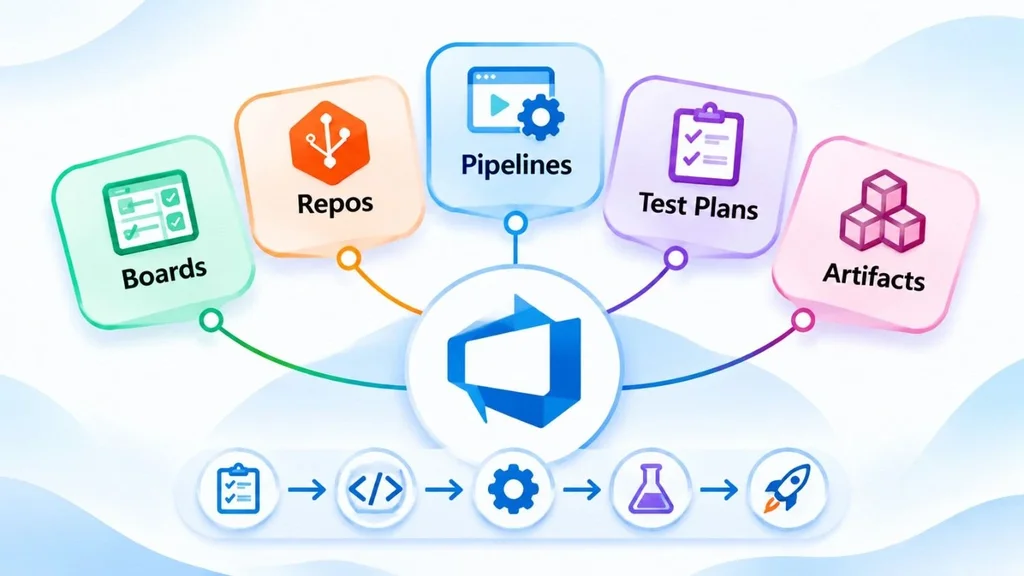
Azure DevOps is a Microsoft platform for planning, building, testing, and deploying software. It started as Team Foundation Server, later became Visual Studio Team Services, and took the Azure DevOps name in 2018. Today it is a practical way to run DevOps day to day. If the term still feels fuzzy, start with our plain-English guide to what DevOps is.
It comes in two forms. Azure DevOps Services is the cloud version that Microsoft hosts and updates for you. Azure DevOps Server is the on-premises version for organizations that must keep data inside their own network.
One common myth is worth clearing up early. Despite the name, you do not have to host your app on Azure. Teams use Azure DevOps to ship to Azure, AWS, Google Cloud, or their own servers, and it works with languages such as .NET, Java, Node.js, Python, PHP, and Ruby.
What Is Azure DevOps Used For? The Quick Answer
Teams mainly use Azure DevOps for six jobs:
1. Project management and work item tracking with Azure Boards.
2. Source control in a private Git repository with Azure Repos.
3. Continuous integration and delivery (CI/CD) with Azure Pipelines.
4. Release management across development, staging, and production.
5. Manual and automation testing through Azure Test Plans and test runs inside pipelines.
6. Package sharing for internal libraries with Azure Artifacts.
The next sections explain each one in plain terms.
The Five Core Azure DevOps Services
Think of Azure DevOps as five tools in one box. You can use all of them or only the ones you need. Many teams start with just Pipelines and add the rest later.
Azure Boards: Project Management and Work Item Tracking
Azure Boards is where work gets planned. Every task, user story, bug, feature, and epic is a work item. You can organize them on backlogs, Kanban boards, and sprint plans, then track progress with dashboards, burndown charts, and velocity charts.
When you create a project, you choose a process: Basic, Agile, Scrum, or CMMI. Basic is the simplest. Scrum and Agile suit teams that run sprints. The real strength of Boards is traceability. You can link a work item to the commits, pull requests, and builds that deal with it, so a bug can be followed all the way to the release that fixed it.
Practical tip: Resist the urge to customize fields and work item types on day one. Most teams are better off running the default process for a few sprints first.
Azure Repos: Git Repository Hosting
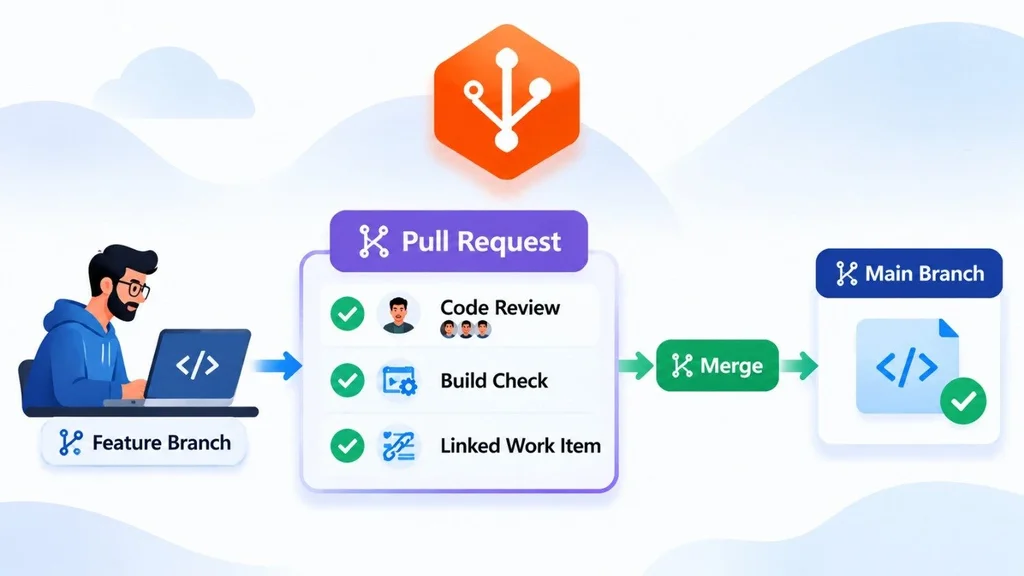
Azure Repos gives you unlimited private Git repositories. It supports pull requests, code reviews, and branch policies, and it works with Visual Studio, VS Code, IntelliJ, Eclipse, Xcode, and Android Studio. Older projects can also use Team Foundation Version Control (TFVC), but Git is the standard choice now.
Branch policies are the feature to learn first. They let you require a reviewer, a linked work item, and a passing build before any code reaches the main branch. That one setting prevents a large share of "who broke production?" conversations.
You do not have to use Repos at all. Azure Pipelines and Azure Boards work with code stored on GitHub too.
Azure Pipelines: CI/CD Pipeline Automation
Azure Pipelines is the automation engine. With continuous integration, every code change triggers a build and a set of tests. With continuous delivery, the tested build moves toward release automatically. If you want a deeper look at how these stages connect, read our guide to what a DevOps pipeline is.
Pipelines are usually written as YAML files that live next to your code. Here is a minimal example for a Node.js app:
trigger:
- main
pool:
vmImage: ubuntu-latest
steps:
- script: npm ci
displayName: Install dependencies
- script: npm test
displayName: Run tests
- script: npm run build
displayName: Build the app
This file tells Azure to run on every push to main, use a Microsoft-hosted Linux machine, then install, test, and build the project. If any step fails, the run fails, and the team knows before the change goes anywhere near customers.
Pipelines run on agents. Microsoft-hosted agents are virtual machines that Microsoft manages for you. Self-hosted agents are machines you run yourself, which helps when you need private network access or special software. Both support containers and Kubernetes.
Release Management in Azure Pipelines
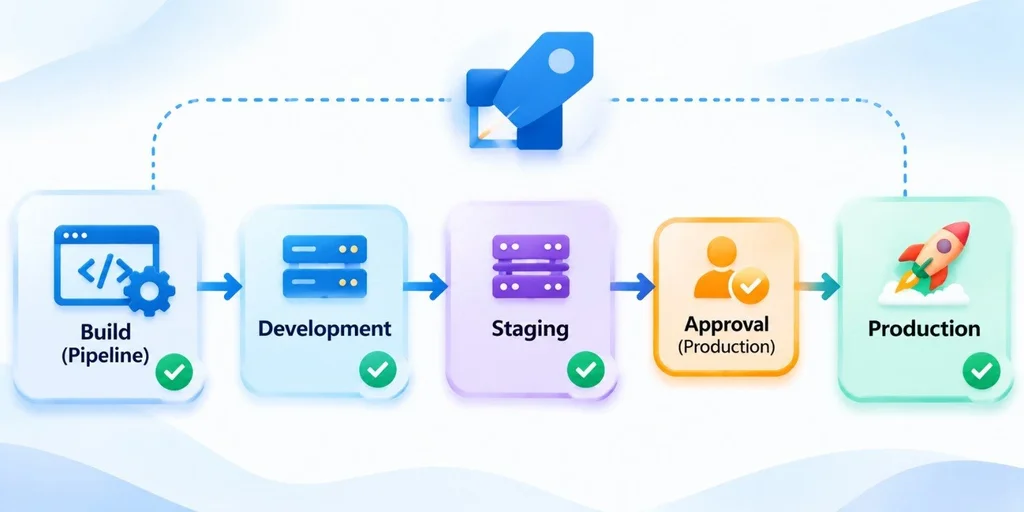
Release management means moving the same build through each environment in a controlled way. In Azure Pipelines, a multi-stage pipeline can deploy to development, then staging, then production. You can add approvals and checks, so production waits for a named person to sign off.
Most new projects use multi-stage YAML pipelines for this. Classic release pipelines still exist for older setups, so you may see both in the wild.
Practical tip: Use manual approvals for production only. Requiring sign-off at every stage slows teams down without adding much safety.
Azure Test Plans and Automation Testing
Testing in Azure DevOps happens in two places. Automated tests, such as unit and integration tests, run inside your pipeline on every change, and the results appear in the run summary. This is the automation testing side, and it needs no extra license.
Azure Test Plans covers the human side. You can write test plans, suites, and cases, run exploratory sessions with screenshots and video, and trace each requirement to its tests and bugs. It is a paid add-on, so check whether you need it before you buy it for everyone. A small team with solid automated tests can often wait until it has dedicated QA staff.
Azure Artifacts: Package Management
Azure Artifacts hosts packages in one place. It supports NuGet, npm, Maven, Python, and Universal Packages, with versioning, retention policies, and access controls. A typical use is sharing an internal library between several teams so nobody copies code from one repo to another. You can also set upstream sources so approved public packages are cached in your own feed.
How the Services Work Together: A Realistic Example
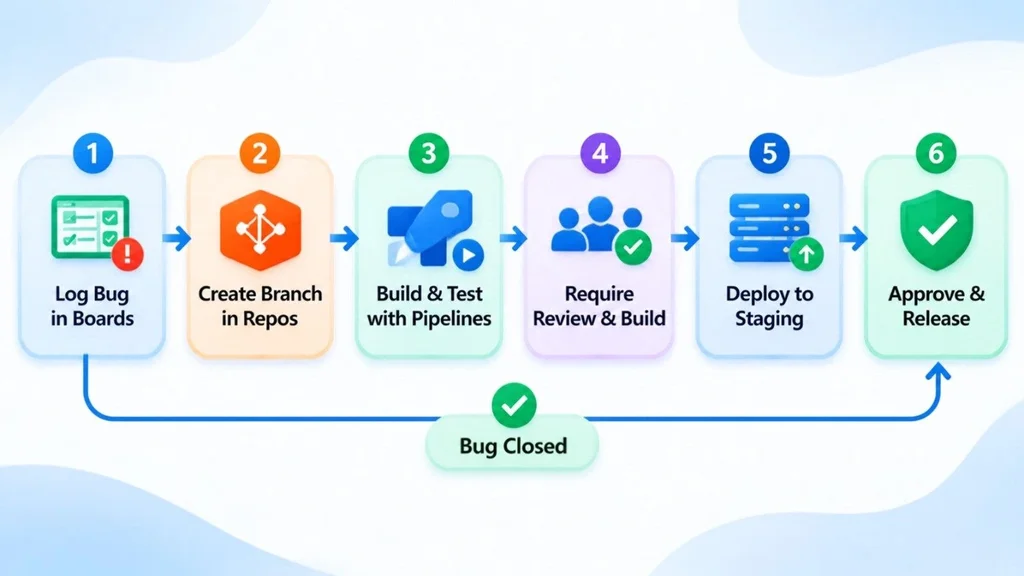
Here is an illustrative scenario. A five-person team runs an online store, and customers report that coupon codes fail at checkout.
1. Support logs a bug in Azure Boards, sets the priority, and assigns it to a developer.
2. The developer creates a branch in Azure Repos linked to that bug and commits a fix.
3. Opening a pull request triggers a pipeline that builds the app and runs the automated tests.
4. A branch policy requires one reviewer and a passing build before the code can merge.
5. After the merge, a second pipeline stage deploys to staging, where a tester checks the coupon flow.
6. A manager approves the production stage, and the release goes out. The linked bug can close automatically once the pull request completes.
From the first report to the final release, every step is connected and searchable. When someone asks "why did we change this code?" six months later, the answer is one click away.
Who Uses Azure DevOps?
• Developers: write code, open pull requests, and watch builds.
• DevOps engineers: design pipelines, manage agents, and control releases.
• QA and test engineers: plan tests, log bugs, and automate checks.
• Project managers and Scrum masters: run sprints and report progress.
• Stakeholders: view dashboards and work items. Microsoft allows unlimited stakeholders at no cost.
Azure DevOps Pricing in the US (2026)
Prices below come from Microsoft's Azure DevOps pricing page and were checked in November 2026. Microsoft can change them, so confirm the current numbers before you budget.
• Basic plan: the first 5 users are free, then $6 per user per month. It includes Boards, Repos, Pipelines, and Artifacts.
• Basic + Test Plans: $52 per user per month.
• Microsoft-hosted pipelines: 1 free parallel job with 1,800 minutes per month. Each extra parallel job costs $40 per month with unlimited minutes.
• Self-hosted pipelines: 1 free parallel job with unlimited minutes. Each extra one costs $15 per month.
• Azure Artifacts: 2 GiB free, then pricing starts at $2 per GiB.
• Optional security add-ons: GitHub Advanced Security for Azure DevOps costs $30 per committer per month for Code Security and $19 for Secret Protection.
Two details trip people up. First, 1,800 minutes is only 30 hours of build time per month, which a busy team can use up quickly. A free self-hosted agent is the usual workaround. Second, Visual Studio subscribers get Azure DevOps access included, and GitHub Enterprise includes Azure DevOps Basic, so you may already have licenses.
Azure DevOps vs GitHub: Which Should You Choose?
Microsoft owns both, and they work well together. You can keep code on GitHub and still use Azure Boards and Azure Pipelines. The better question is which one should be your main home.
| Area | Azure DevOps | GitHub |
| Core strength | All-in-one lifecycle suite | Code hosting, collaboration, community |
| Project management | Azure Boards with backlogs, sprints, and process templates | GitHub Issues and Projects (lighter) |
| CI/CD | Azure Pipelines | GitHub Actions |
| Manual test management | Azure Test Plans | No built-in equivalent |
| Open source and community | Less common | The default home for open source |
| Best fit | Teams that want one traceable system with deep planning and testing | Teams that live in pull requests and want a simpler setup |
A fair rule of thumb: if your team wants strong planning, formal test management, and approval controls under one roof, Azure DevOps is a solid choice. If you are building in the open or want the lightest setup, GitHub is often the easier start.
Benefits and Limitations of Azure DevOps
Benefits
• One connected system, so planning, code, builds, and releases stay traceable.
• Modular design. You can adopt one service without the others.
• Works with many languages, platforms, and clouds.
• A free start for up to five users.
• Enterprise controls, including Microsoft Entra ID sign-in and an on-premises option.
Limitations
• A learning curve. Permissions, process templates, and pipelines take time to understand.
• The smoothest experience is inside the Microsoft ecosystem.
• Costs can grow with Test Plans, extra parallel jobs, and larger teams.
• It can be too much for a solo developer or a very small project.
Is Azure DevOps Right for Your Team?
It is likely a good fit if you:
• Need planning, code, CI/CD, and testing in one place.
• Already use Visual Studio, .NET, Azure, or Microsoft 365.
• Work in a regulated setting where audit trails and approvals matter.
• Have several teams that share packages and pipelines.
You may want something lighter if you:
• Are a solo developer or a tiny team with simple needs.
• Build mostly open-source projects and want community visibility.
• Only need basic CI and are happy with the tools built into your code host.
How to Get Started With Azure DevOps
1. Sign in at dev.azure.com with a Microsoft account and create an organization.
2. Create a project and choose a process. Pick Basic for simplicity or Scrum for sprint-based work.
3. Import or push your code to Azure Repos, or connect an existing GitHub repository.
4. Open Pipelines, choose your repository, start from a YAML template, and run your first build.
5. Add a branch policy on main that requires a reviewer, a linked work item, and a successful build.
It is also worth knowing that Microsoft now offers an Azure DevOps MCP Server. Once configured, it lets you manage projects, query work items, and review pipelines using natural language prompts, which can save time on routine status checks.
Common Mistakes to Avoid
• Skipping branch policies, which lets untested code reach the main branch.
• Creating too many custom fields and work item types before the team needs them.
• Storing passwords or keys in YAML files. Use secret variables, variable groups, or Azure Key Vault instead.
• Building one huge pipeline that takes an hour. Split stages and cache dependencies.
• Buying Test Plans licenses for every user when only testers need them.
• Giving everyone admin rights instead of using permission groups.
Conclusion
So, what is Azure DevOps used for? It is used to run the whole software delivery process in one place: planning work in Boards, storing code in Repos, automating builds and releases in Pipelines, testing with automation and Test Plans, and sharing packages through Artifacts.
It is not the only option, and it is not the right answer for every team. But for groups that value traceability, approvals, and a single source of truth, it remains a strong choice, and the free tier makes it easy to test with a real project.
If you would rather not set it up alone, you can explore Canduit's DevOps services for help with pipelines and automation.
Frequently Asked Questions
What is Azure DevOps used for in simple terms?
Azure DevOps is used to plan software work, store and review code, automatically build and test it, and release it to users. It brings those jobs together so teams do not need a separate tool for each one.
Is Azure DevOps free to use?
Partly. Microsoft gives the first five users a free Basic plan, plus one free Microsoft-hosted parallel job with 1,800 minutes per month and one free self-hosted job. Extra users, extra parallel jobs, storage above 2 GiB, and Azure Test Plans cost extra.
Is Azure DevOps only a CI/CD tool?
No. Azure Pipelines handles CI/CD, but Azure DevOps also covers project management with Boards, Git hosting with Repos, test management with Test Plans, and package hosting with Artifacts.
Should I choose Azure DevOps or GitHub?
Choose Azure DevOps if you want deep planning, formal test management, and one traceable system. Choose GitHub if your work centers on pull requests, open source, or a lighter setup. Many teams combine them, for example GitHub for code and Azure Boards for planning.
Can I use Azure DevOps without hosting my app on Azure?
Yes. Azure DevOps is not tied to Azure hosting. You can deploy to Azure, AWS, Google Cloud, or on-premises servers, and use it with many languages and operating systems.